Networking Is Complex
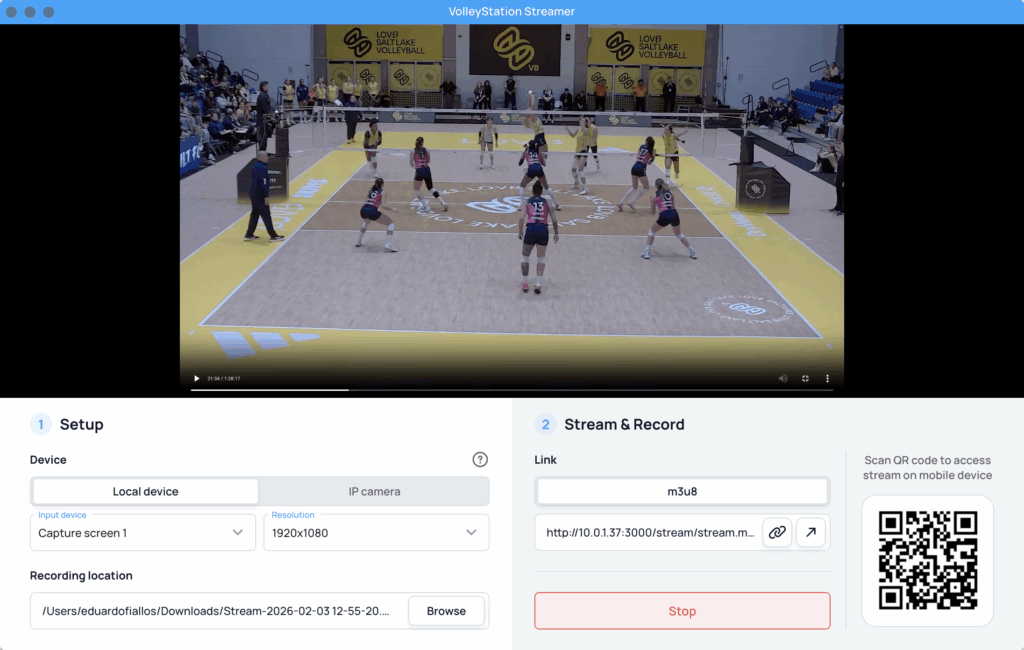
VolleyStation Streamer is designed to do something that appears simple, it takes video on your computer and sends it to other devices. But there’s so much more to it than that. Because of the number of different moving pieces, it can be hard to tell how everything is supposed to work and even harder to tell what’s not working the way it should.
Video Feeds Are Complex
For starters, the video generated by or coming into your computer can take many forms. For example, while not very practical, you could use a built-in web cam to show video. More than likely, you have a camera of some kind attached to your computer. You may be connecting the camera directly to a computer or you may be routing the camera video through a capture device (like Elgato’s Cam Link 4K or an Avermedia X’TRA GO). You might be tapping into an IP camera. All of those video sources have their own quirks and VS Streamer does its best to handle them.
Different applications can have different ways of checking video streams. We recommend opening access to the feed in the order by which the devices access the data. An order like this is generally safe and effective:
- Connect all devices (VS Streamer computer, VS Pro computer(s), bench devices) to the same network.
- Connect the video device to the VS Streamer computer.
- Start the video device first (turn the camera on, start it recording, etc.)
- On the VS Streamer computer, open VS Streamer, set up the stream, start recording/streaming.
- On the VS Pro computer, open the match to stream video into, then add the live stream.
- Open the match to stream video into in VS Pro on any secondary (dual coding) computers, connect them to the primary computer, then add the live stream.
- Open web browsers on any devices, then scan the QR code for the match from the primary VS Pro computer.
- We recommend using the QR code on VS Streamer to also add the stream to any bench devices in a web browser. Often, when bench mode is opened on those devices, the video feed needs to be added. If you have the stream open in a browser, you can copy the stream URL and paste it into the video feed of the VS bench tab.
VolleyStation Streamer is built to take different kinds of video feeds and convert them into an internet-friendly feed. But the quirks of each type of feed is often the first issue users encounter. How can you address issues with your VS Streamer setup?
- The local device (something connected to the computer via a cable) isn’t recognized.
- Try finding the device using different software (QuickTime, OBS, etc.). If the device isn’t recognized by other applications, there may be some video software or drivers that need to be installed or updated. (For instance, you can connect a GoPro directly to a computer via USB but accessing the video requires an application from GoPro that runs in the background.) Check the device manufacturer’s web site for help.
- If you’re able to access the device via OBS but not via VS Streamer, we recommend running the video feed into VS Streamer using OBS’ “virtual camera” feature as a short term solution. Contact us for more assistance.
- The local device is recognized by VS Streamer but the feed doesn’t appear after clicking the start button.
- This issue is difficult to diagnose because it can have many causes. For instance, if you are using an older capture card, some are not compatible with Apple Silicon (M-series chips). Another potential issue is a recording device requires a particular setting on the device. Check the support documentation for the device you are using. Contact us for more assistance.
- The IP camera feed won’t appear in VS Streamer.
- Try using the URL you entered in the IP camera address text box into a web browser or other video player (VLC, OBS, etc.). (Most web browsers can handle correctly-formulated IP camera feeds.) If you can’t access the camera in other applications, the issue may be with the URL. Check for typos. Check this article for help with formulating URLs for Volley Metrics IP cameras.
- The URL may be correct but you’re using a university-managed computer and/or university network. Often, your university IT department will block lesser-used ports and/or software by default. If you are using a Windows computer, check this article to see if the computer is allowing communication. If you need admin access to make changes, check with your IT department. You may need to show your IT department the URL you are trying to access to see if they are blocking communication.
- The feed is working in VS Streamer but VS Pro, web browsers, or bench devices are not able to access it (black screen, spinning wheel).
- If the feed isn’t being recognized by a downstream device (ones that access the feed from some other device), close access to the feed on every upstream device (devices between the current device and the computer running VS Streamer) that isn’t accessing the stream until you work back to a device that is receiving the stream.
- The video feed is delayed.
- For our system, there are several layers that create delays:
- Depending on the video feed (IP camera vs. camcorder or other device connected directly to the streaming computer), there may already be a delay before the video gets to VS Streamer.
- Some delay is inevitable because VS Streamer has to process the incoming video and create a stream in a different format. The delay occurs because the video is being processed rather than just being passed through. This delay is generally 2-4 seconds.
- VS Streamer passes the video stream it creates to devices on the same network via HTTP (this includes watching the video on the streaming computer itself)
- Receiving devices process the video stream in some application (VS Pro, web browser, VLC, etc.)
- While some steps can be taken to mitigate delay, understand that there is virtually nothing you can do to reduce the delay to less than 3-4 seconds. In most cases, expect 4-6 seconds of delay.
- Hardwire all connections. This is impractical in most real-world scenarios. It will decrease delay by fractions of a second but will increase stability considerably.
- Decrease the number of devices involved in video processing. The simplest setup is best. Remember that VS Streamer was originally designed for international competition in which the analyst is sitting next to or near their camera and hardwiring the camera is easier.
- Keep the web browsers used for bench mode and viewing video up to date. This can improve delay by fractions of a second.
- For our system, there are several layers that create delays:
VolleyStation Streamer is a simple but very effective tool for streaming video. Keep in mind that it is only part of a larger system and keeping all of those pieces working together involves computer networking and computer processing. While we can explain some common issues, there are many situations that can’t be foreseen. While we will do what we can to help you troubleshoot, it is helpful for you to have some knowledge of how networks function to diagnose where problems may be arising in your setup.