Share more than just your VS Pro scout data with your staff on the bench
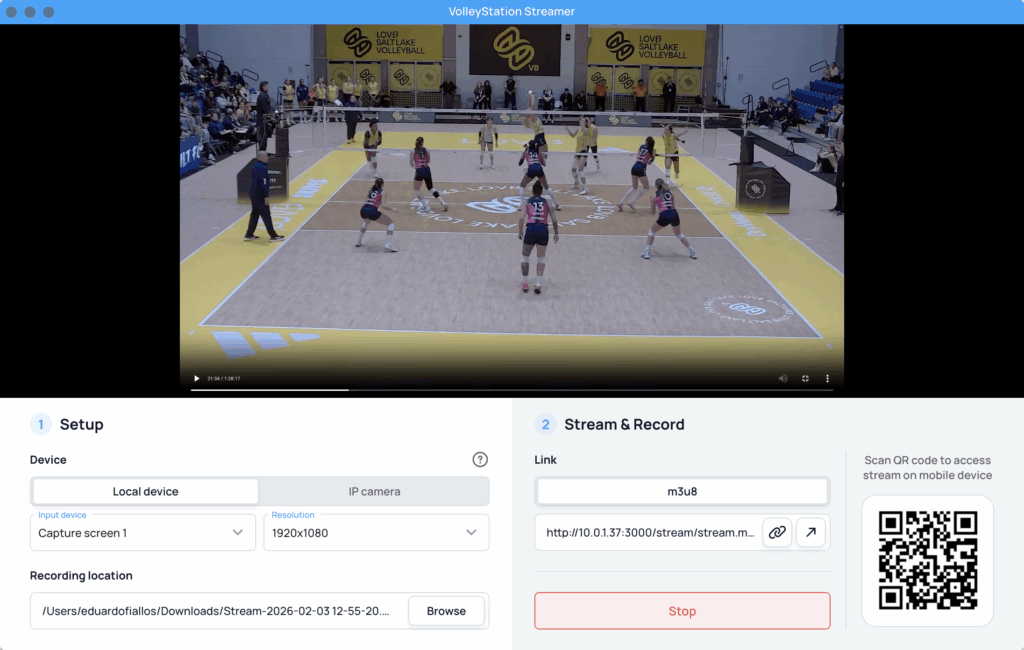
This winter, the Division I Women’s Volleyball Playing Rules Subcommittee approved an experimental rule allowing live video transmission to bench areas if conferences also choose to adopt the rule. This gives VS Pro users new to VS Streamer a lot to figure out before the fall indoor season. To support your efforts to stream video this fall, VolleyStation has assembled some materials to walk you through setting up VS Streamer and integrating it into VS Pro. We’re sending this information out now so women’s college teams have the opportunity to learn the basics, test their setups, troubleshoot, and ask questions during the spring season so you’ll be prepared before the fall.
Why go through the extra work to stream video to the bench during competition? Think about how instrumental video feedback has become in coaching. And yet, coaches have been forced to ignore that tool in competition. Setting up a video feed in competition gives coaches the ability to use video feedback in many of the same ways they do in practice. In addition to giving technical feedback to players, live video gives coaches the ability to quickly review tactics and decisions as well. When coupled with VS Pro, video can be quickly and easily searched, sorted, tagged, and reviewed. VS Pro with live video from VS Streamer gives you the ability to do during the match all the things you had to wait until after the match to do.
Regardless of if you’re familiar with VolleyStation Streamer or not, it’s worthwhile to quickly explain what it does. We are surrounded by devices that capture video. Some of those devices can connect to networks, some cannot. Some devices can stream their video in an easily accessible manner, some cannot. VS Streamer is built to standardize video feeds from all kinds of sources and make them network-friendly using commonly-used network protocols. This allows VS Streamer feeds to be recorded in a standard format and be easily accessed via web browsers, video players, and, of course, VolleyStation Pro.
If you need to download VS Streamer, use one of these links:
Windows: https://storage.volleystation.com/downloads/software/VolleyStation-Streamer-win-latest.exe
Mac: https://storage.volleystation.com/downloads/software/VolleyStation-Streamer-mac-latest.dmg
There are many possible setups for streaming video, just as there are many possibilities for receiving the stream. One very simple setup that many people can use immediately doesn’t require anything more than a laptop with VS Streamer and an iPad. The video below shows how to use a basic app (IP4K) on an iPad to send video to VS Streamer so the feed can be recorded and/or shared with other applications. Watch this video to see how it works.
But you don’t have to stop at a bare bones setup. You can connect a video source to a computer running VS Streamer and then pass that video feed on to other devices. To see the most common ways to connect devices to VS Streamer and how to incorporate live streams into VS Pro, watch this video.
Hopefully, these two videos not only help you understand how to create a VS Streamer setup but also help you think about the options you have within your program with the equipment you have. For a more step-by-step approach and for some additional tips, tricks, and ideas, take a look at these slides.
We recognize that there are plenty of unique situations and plenty of questions about what VS Streamer can do for you. You’re always welcome to contact us for more. Email Eduardo Fiallos, our Coordinator of Client Education, at eduardo.fiallos@volleystation.com.